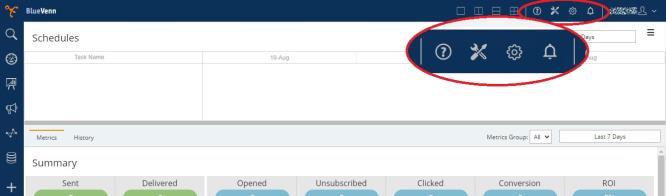
Located within the title bar, the admin menu contains icons for tools, settings, and notifications alongside a link to this help center.
The tools menu
Clicking the tools icon opens the tools menu, defaulting to the general tab. Here you can enable the task scheduler, update SMTP settings, and add SMS settings.
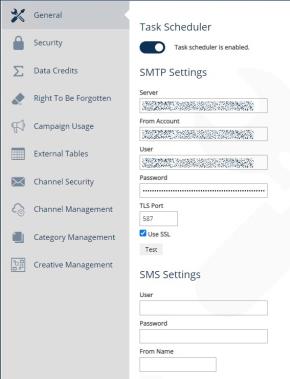
The security tab provides tools for managing log in settings, user roles and groups, and accounts.
The data credits tab allows you to limit the maximum number of records to be exported via a campaign or download of a selection.
The right to be forgotten tab allows for the location and removal of personal identification data.
The campaign usage tab allows you to view a summary of your campaign history and manage your history records.
The external tables tab allows you to create tables outside the main analytical database to store data, e.g. to import data from Unify via the engage connector.
The channel security tab provides an overview of your channels and their status.
The channel management tab provides tools for service job schedules for your channels.
The category management tab allows you to group similar objects into a category set.
The creative management tab allows you to add custom fonts for use within your email creatives.
The Settings Menu
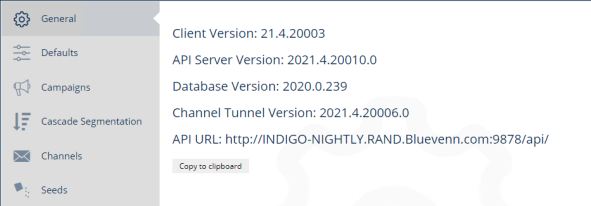
Clicking the settings icon opens the settings menu, defaulting to the general tab. Here you can see the current version numbers of the client and server components.
The defaults tab allows you to:
-
Set a default table level at which any new analysis or campaign is created. You can change the level within a campaign or analysis.
-
Set a default field list for any table in your database. When you display a selection of a particular table, the fields you see will be those in the specified field list.
The campaigns tab contains global settings for campaigns.
The cascade segmentation tab allows you to set the maximum number of cascade segment cells.
The channels tab allows you to view the available channels and applicable suppressions.
The seeds tab allows you to add seed filters.
Notifications
The notifications feature provides users with feedback from Engage around actions such as clearing trial campaign history, committing an expression or running a campaign. Notifications can be seen popping up from the top-right corner of the screen.
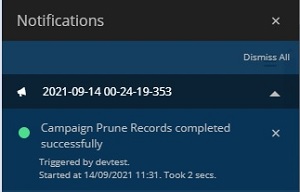
You can configure additional notification settings within an item's properties, such as notifying accounts via email, and add external accounts so that users without Engage access can be notified when tasks have run.